SSD vs HDD: Storage Choices That Speed Up Your Computer
Confused about drives? Learn how SSDs and HDDs compare on speed, lifespan, noise, and cost—and how to choose or upgrade for a faster PC.
Understanding SSDs and HDDs
When choosing storage in computers and consumer electronics, the big decision often comes down to Solid-State Drives (SSDs) versus Hard Disk Drives (HDDs). An SSD stores data in non-volatile flash memory, using electronic cells and a controller to manage how bits are read and written. With no moving parts, an SSD is inherently faster and more resilient to physical shocks. An HDD, by contrast, uses spinning magnetic platters and a moving actuator arm to read and write data, a design that has powered desktops, laptops, and media centers for a long time. Both options come in familiar 2.5-inch and 3.5-inch form factors for many devices, while SSDs also appear as sleek M.2 sticks that slot directly into the motherboard. Interface choices like SATA and NVMe over PCIe further influence performance and compatibility. Understanding these fundamentals helps buyers weigh speed, durability, and capacity needs across laptops, desktops, mini PCs, and home entertainment systems.
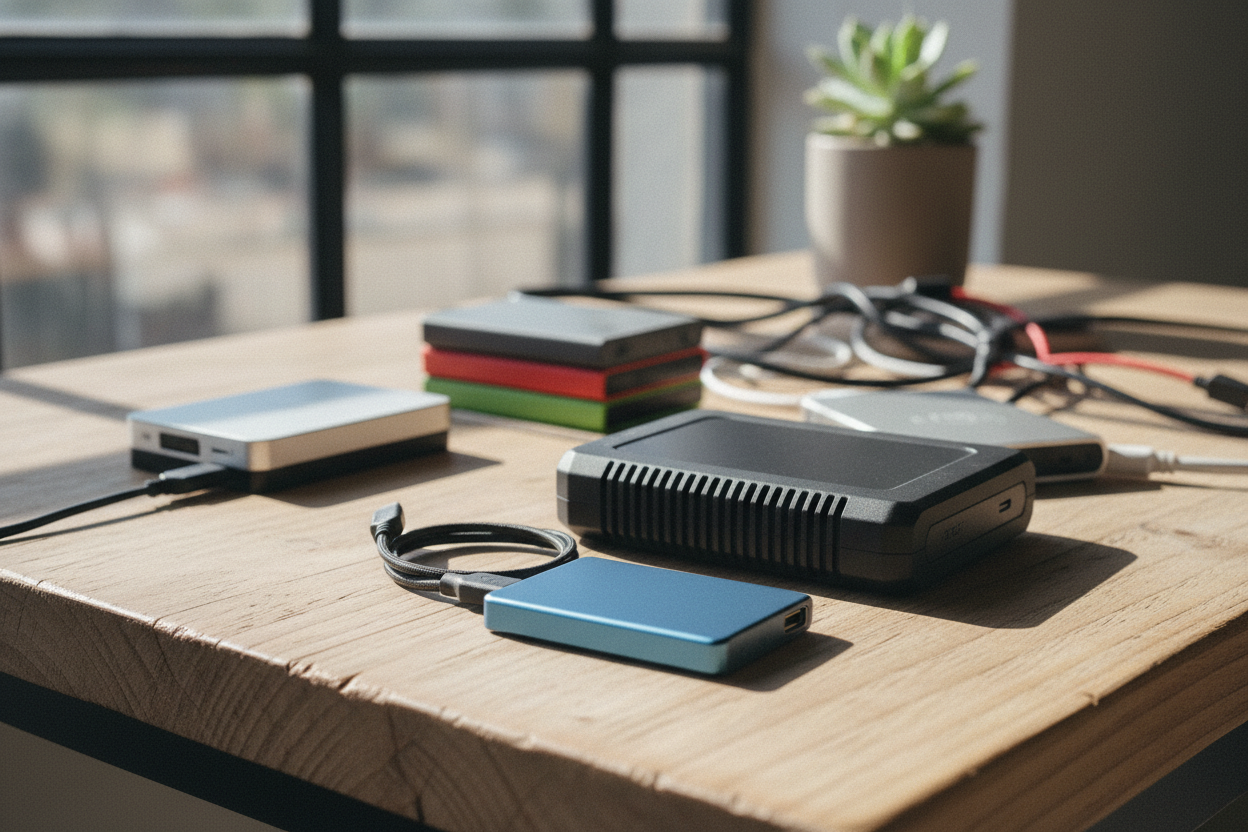
Speed and Everyday Responsiveness
Speed is where SSDs dramatically outshine traditional HDDs. Because SSDs access data electronically rather than mechanically, they excel at random access, which influences how quickly your system boots, launches apps, searches files, and resumes from sleep. Everyday tasks feel snappier thanks to low latency and high IOPS (input/output operations per second). HDDs can deliver decent sequential throughput for large file transfers, yet they struggle with many small reads and writes due to seek time and rotational delay. This difference shows up when you open big photo libraries, load complex game levels, or juggle dozens of browser tabs. For content creators, compiling projects, importing footage, and previewing timelines all benefit from SSD read/write speeds. Even simple chores like installing updates or scanning for malware complete faster. If you value immediate responsiveness and reduced waiting, an SSD offers an upgrade that you feel every time you click, drag, or multitask.
Durability, Noise, and Power Efficiency
Beyond speed, durability and acoustic comfort are major advantages of SSDs. Without spinning platters or a delicate read head, SSDs provide superior shock resistance, making them ideal for laptops, handheld devices, and portable external drives. They also operate in near silence, eliminating the whirring and occasional vibration that can accompany HDDs. This quiet behavior contributes to a calmer workspace and complements minimalist home entertainment setups. On the power efficiency front, SSDs typically draw less energy during active use and idle states, which can translate to better battery life in notebooks and cooler operation in compact desktops. Lower thermal output reduces fan ramp-ups and helps sustain performance in cramped enclosures. While HDDs remain dependable and can run for long periods, their mechanical wear and sensitivity to drops are practical concerns for mobile users. For anyone prioritizing ruggedness, quiet performance, and energy savings, SSDs deliver tangible, daily benefits beyond raw speed.
Capacity, Value, and Long-Term Storage
When the conversation turns to capacity and value, HDDs remain compelling. They offer large storage at a lower cost per gigabyte, making them great for media libraries, game collections, and long-term archives. If you shoot lots of photos, store raw video, or maintain extensive backups, an HDD can provide ample space without breaking the budget. SSDs are steadily growing in capacity and affordability, and high-capacity options are now realistic for primary drives, boot volumes, and project work. Still, for bulk storage that is accessed less frequently, HDDs can be the more economical choice. Consider how often you need quick access: active files and current projects belong on fast SSD storage, while older assets and rarely used installers can rest on high-capacity HDDs. Thinking in terms of tiers—fast for now, spacious for later—lets you balance speed and budget. This approach also simplifies future upgrades as your library expands and your performance needs evolve.
Matching Storage to Your Workloads
Your ideal drive depends on what you do. Gamers benefit when the operating system and frequently played titles live on an SSD, shrinking load times and improving texture streaming. Creators working with photography, design, or video gain from SSDs as scratch space for previews and renders, while keeping completed projects on an HDD for archiving. Developers see shorter compile times, faster dependency installs, and snappier virtual machines with SSDs. Office multitaskers notice quicker searches, instant indexing, and fewer slowdowns when juggling spreadsheets, email, and cloud-sync clients. If you primarily watch movies and listen to music offline, an HDD is a sensible library. For balanced systems, a small SSD for the OS and apps plus an HDD for bulk storage often hits the sweet spot. Evaluate file sizes, frequency of access, and tolerance for waiting. Matching workloads to the right tier ensures you spend where speed matters and save where capacity dominates.
Smart Hybrid Setups and Caching
A practical route is a hybrid setup that pairs an SSD with an HDD. Use the SSD for your operating system, core applications, and active projects to enjoy instant responsiveness. Assign the HDD to media collections, disk images, backups, and completed work. Many systems also support caching, where fast SSD space accelerates frequently accessed data stored on a larger drive. This tiered storage model delivers the best of both worlds: speed where you feel it, capacity where you need it. External options add flexibility; a compact external SSD is excellent for travel and on-the-go edits, while a larger external HDD can house archives at home. Regardless of configuration, prioritize backup and redundancy. Keep multiple copies across different devices or locations to protect against failure, accidental deletion, or theft. With a thoughtful layout and reliable backup routine, you can build a storage system that scales smoothly with your habits and hardware.
Upgrade Tips and Buying Considerations
Before upgrading, check your device's interface and form factor. Many desktops and laptops accept 2.5-inch SATA SSDs, while newer systems offer M.2 slots for NVMe drives that deliver even higher performance over PCIe. Confirm clearance, heatsink needs, and available lanes in compact builds. Plan your migration: cloning preserves your setup, while a clean install refreshes performance and removes clutter. After installing an SSD, ensure TRIM is enabled, avoid unnecessary defragmentation, and keep firmware current for stability. Monitor SMART health data to track wear and catch issues early. For HDDs, use proper mounting, enable write caching where appropriate, and schedule occasional checks to maintain integrity. Consider noise profiles and vibration damping for quiet builds. Finally, balance capacity, endurance, and budget against real workloads. A well-chosen drive—placed on the right interface, configured correctly, and backed up responsibly—can transform your computer's feel, extend its useful life, and streamline your daily computing.